Thursday, July 31, 2014

What is BD Lite? What BD Lite’s features are included ?

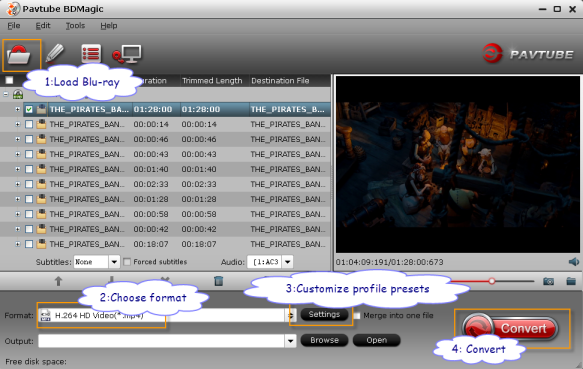
If you like blu-ray movies, you may know the BD Lite. Part of movie fans play ripped Blu-ray movies in Simple BD or BD lite mode, because there is no Spam, movie trailers and advertisements etc. Here, in this article will show you what is BD Lite? What features are included in BD Lite? 
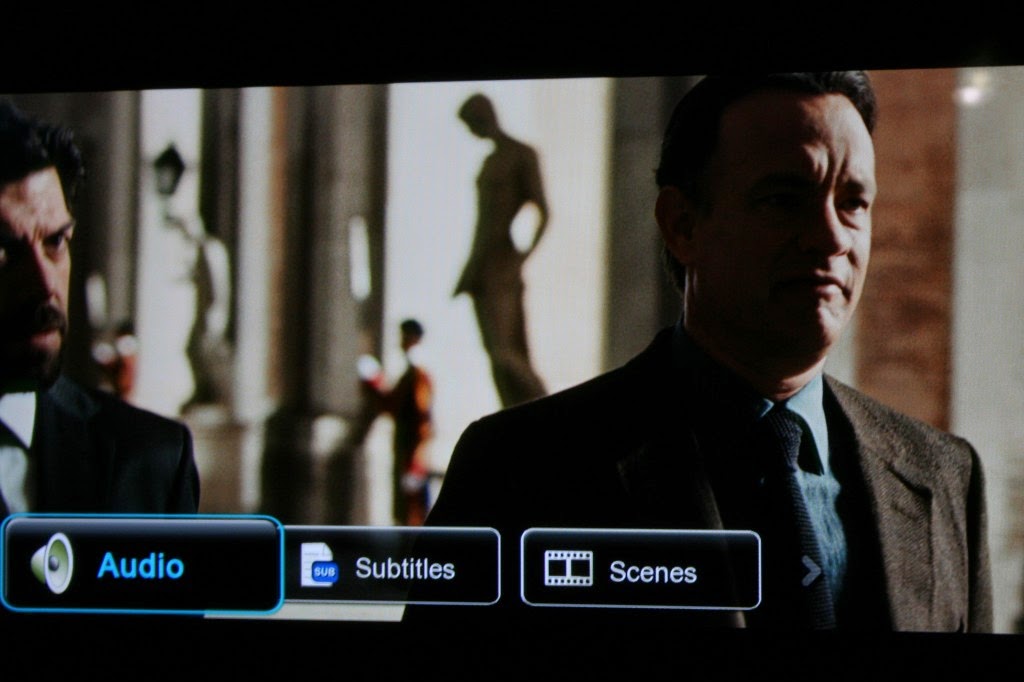
features-about-bd-lite
   
What is BD Lite? 
   
If the media player doesn’t have Java (as indicated in media player specs), it only supports Simple BD or BD lite. BD lite is not the same as full BD playback. Full BD playback means the media player will perform as if a disc is put in a standalone bluray player with menus from the manufacturer of the disc not from the manufacturer of the player which is limited to changing audio/subtitles/chapters. BD-Live will also NOT work. 

After review some BD-Lite user experiences quoted from forums, you can get some features below listed:   
   
A. If you want to change between chapters then the movie is just stoped. 
B. The audio tracks are not named correctly when choosing. 
C. BD-Lite will play the main feature immediately. ( No spam, movie trailers, advertisements etc)
D. It will allows you to change chapters, subtitles and audio. To play the extras, you’re going to have to find it.  
E. Any Blu Ray that played with only BD Lite menus only sent through the core audio and not DTS(MA)/TrueHD.
F. These HD Players can support BD Lite, just like: Xtreamer Pro, PopCorn Hour A-200, A-210, AC Ryan Play On, Netgear NeoTV 550 HD, etc.
   
What features are in reserved in BD Lite?


Supported


Blu-ray File Structure


Folder (BDMV)


YES


Menu


Separated files (the film stretches over multiple M2TS files)


Only first file will be played


BD ISO


NO


custom menu for selecting language, subtitles and chapters


NO


original menu support w/o Java


NO


Chapter


chapter support


NO


Audio


Multiple audio tracks


YES


HD-audio (DTS-HD, Dolby TrueHD, LPCM)


NO


Subtitles


Multiple subtitles


YES


Blu-ray PGS subtitles


YES


Rewind


Resume playback support


YES

Conclusion

Blu-ray movies make our life colorful, you can choose play the Blu-ray discs directly or enjoy the BD-lite on computer at anytime. Hope you have fun!

Tuesday, July 22, 2014

Play 720p, 1080p video on Amazon Fire Phone

Many people want to play their MKV and AVI files with 720p/1080p on their Amazon Fire Phone, however, videos will be played back in slow motion with stutters and noises. Maybe you are one of them, and you may take many of the measures to solve this problem like trying some third party apps, changing of SD card, but these ways don’t work, because you does not solve the fundamental problem – bitrate which determines video quality and file size and is more intensive on the CPU in your Amazon Fire Phone 

Maybe you want also play high resolution like 1080p and above or high bitrate like MKV video of 30mpbs, which cannot be supported by Amazon Fire Phone, so you need to cut bitrate down by compressing. 

How to compress 1080p videos with high bitrate to play on Amazon Fire Phone 

To achieve this goal, you need get help from third party apps like Pavtube Video Converter Ultimate, which can help you compress many kinds formats video like MKV, AVI, VOB, M2TS,DRM, etc to your Amazon Fire Phone with best quality at fast speed, and you can also use it to edit your video to remove the extra parts. If you want to play your DVD or Blu-ray movies on your Amazon Fire Phone, you also can use it to convert your DVD/Blu-ray collection to Fire Phone playable formats like MP4 without quality loss. 

Now free download the program, and install it on your PC, if you are using Mac, you can download Mac version – Pavtube iMedia Converter for Mac 

Step 1. Import source video files to the program 

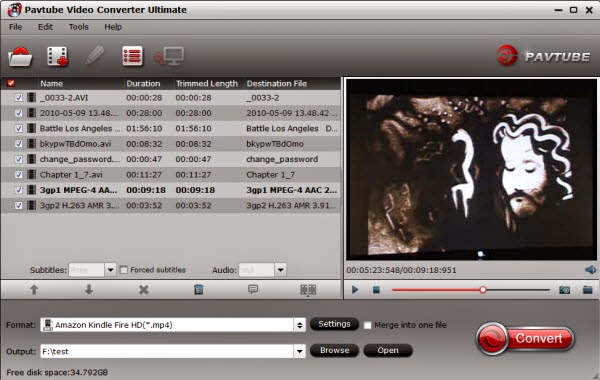
Once run the Video Converter Ultimate for Amazon Fire Phone software, click “Add Video” to load your source video files MKV or MTS/M2TS, VOB, MOV, TOD, TiVo, etc. Or click on “BD/DVD disc” icon to load movie from DVD and Blu-ray source (Disc, folder, ISO). 


Step 2. Select the suitable output video format 

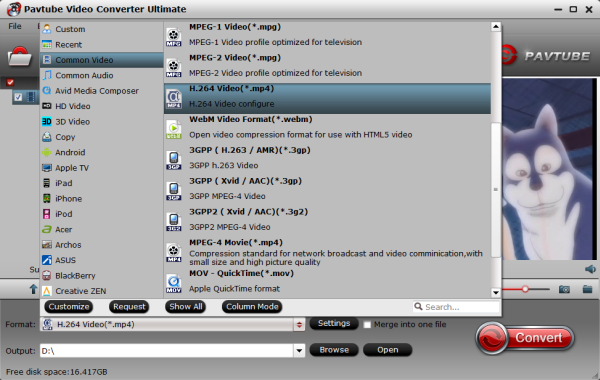
Select the suitable output video format by clicking “Format” bar, you can easily find the optimized videos for Amazon Fire Phone under “Common Video > H.264 Video (*.mp4)”. If you want get HD MP4, you can choose “HD Video > H.264 HD Video (*.mp4)”. 


Tip: If you have other Android Phones or Tablets like Samsung Galaxy Tab S or Samsung Galaxy Tab 3, you also can choose this format for them. And you also can enjoy your HD WMV movies on your Android Tablets & Phones

Step 3. Adjust audio and video parameters. 

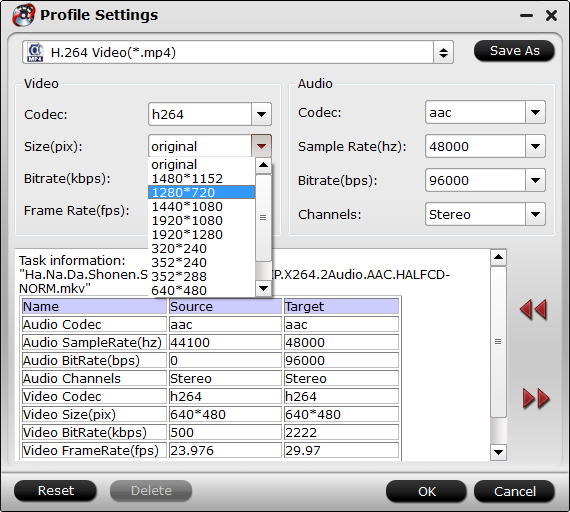
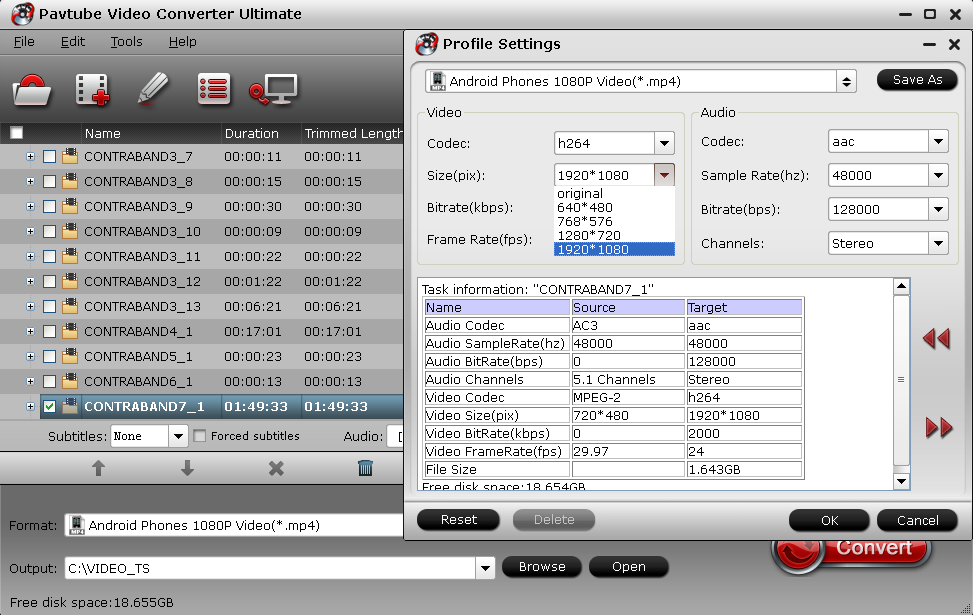
After you determined your format, you can click “Settings” to change the video encoder, resolution, frame rate, etc. as you wish. Amazon Fire Phone 1080p HD video recording at 30 fps and Keep in mind that bitrate higher results in big file size, and lower visible quality loss, and vice versa. You can set a size as “1280*720” for the fire phone to fit the resolution. 


Step 4. Start encoding movies to Amazon Fire Phone 

After above steps, just click “Convert” to begin ripping Blu-ray/DVD and converting 1080p videos to Amazon Fire Phone highly compatible MP4 videos. 

When the ripping task is completed, you can click “Open” to find the ripped videos. After that, connect your device to computer via USB and transfer the videos to it with ease. Now, you can enjoy viewing movies DVD, Blu-ray and various formats of MKV, AVI, VOB, WMV, MTS HD videos on your Amazon Fire Phone anytime everywhere for great digital fun. 

Friday, July 18, 2014

Enable Surface Pro 3 and other Surface Tablets to play MKV

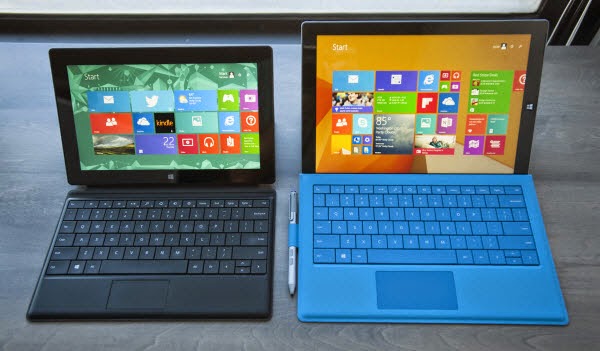
Surface Pro 3 is with 12” display and is easier than ever to use as a tablet. At home, whether it’s you or your kids that need a break, Surface Pro 3 plays movies, music, and games smoothly. However, if you want to watch MKV movies on it for playback but failed, that is because the MKV videos is unsupported by Surface tablet. 

In cases like these, you can install a video player like mobile HD Video Player which enables playing MKV files on your Surface Pro 3, however, you will likely run into playback issues such as stuttering video, freezing video, audio sync issues or even playback in slow-motion. In such a case, you can also convert your MKV files to H.264 MP4, which is highly compatible with Surface Pro 3, here suggest you professional video converter program to help you achieve it – Pavtube Video Convert Ultimate. (When you get the MP4 video, you not only can play it on your Surface Pro 3, you also can transfer it to your other Surface Tablets for watching.) 


Free Download Pavtube Video Converter Ultimate for Windows or Mac users: 


How to convert MKV Video to Surface Pro 3 

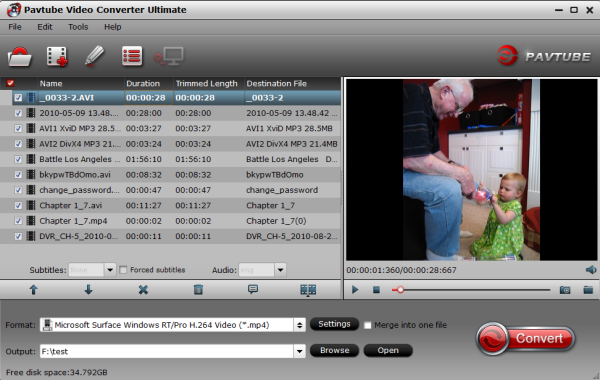
1. Install and launch the Video Converter Ultimate on your PC, click “Add Video” to import your source materials in .mkv format. Besides MKV, you can also load DVD, Blu-ray, ISO image, FLV, AVI, WMV, VOB, TiVo, MPG, MOV, M2TS etc. files to the program. The software supports batch conversion so that you can also add several files to convert at one time. 


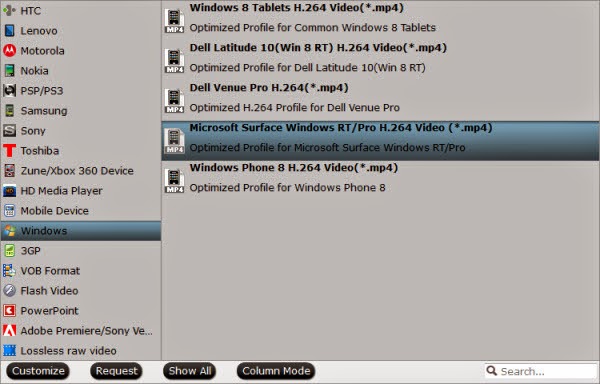
2. Click “Format” bar, you can choose “Format > Windows > Microsoft Surface Window RT/Pro H.264 Video (*.mp4)“. The preset is specially designed for Playbook but the output videos could fit on Surface Pro 3 perfectly. 


3. Start the conversion from MKV to MP4 video for Surface Pro 3. 

4. After the process, transfer the videos to your Surface Pro 3. 

So there you have it. Pretty simple! In this way, you can effortlessly play MKV videos on Surface Pro 3 as you like. 


Tips: 

1. If you are not satisfied with the default settings, click the “Settings” button, you can change the settings by yourself. You can change the video size (pix), bitrate, audio channels, etc. Just remember the file size mainly depends on the bitrate, which means the higher bitrate you set, the bigger size you get. Or you can convert your MKV files to HD video MP4 from “HD Video”, which you can choose the “Size” to 1920 by 1080. 

2. If your want to do some editing with your video such as cutting the part you don't need, adding text/image/video watermark or adding the subtitle, just click the “Edit” button to do these work. 

Wednesday, July 16, 2014

Enjoy HD WMV movies on your Android Tablets & Phones

The HD WMV file format is very popular, but it is not an Android friendly format. So want to watch the HD WMV files on Android Phone or Tablet, you can install HD WMV player on your Android devices, however, most free apps for playing HD WMV on Android devices are ads supported and may constantly pop up annoying ads. You can also choose to convert your HD WMV files to HD MP4 for your Android Phone or Tablet with third-party software, like Pavtube Video Converter Ultimate, which can help you convert HD WMV to HD MP4 for your Android Phone or Tablet with best quality and without annoying ads. 

Tip: If you want backup or convert your DVD and Blu-ray collections, you can also use Pavtube Video Converter Ultimate to get it, which has the fast speed, the step is same. 

How to Converter to convert WMV to your Android Phone supported format? 

Free Download HD WMV to Android Converter here 


Step 1. Click "Add Videos" to import the source .wmv file which you want to convert to your Android Phone. 


Step 2. Select the output format 

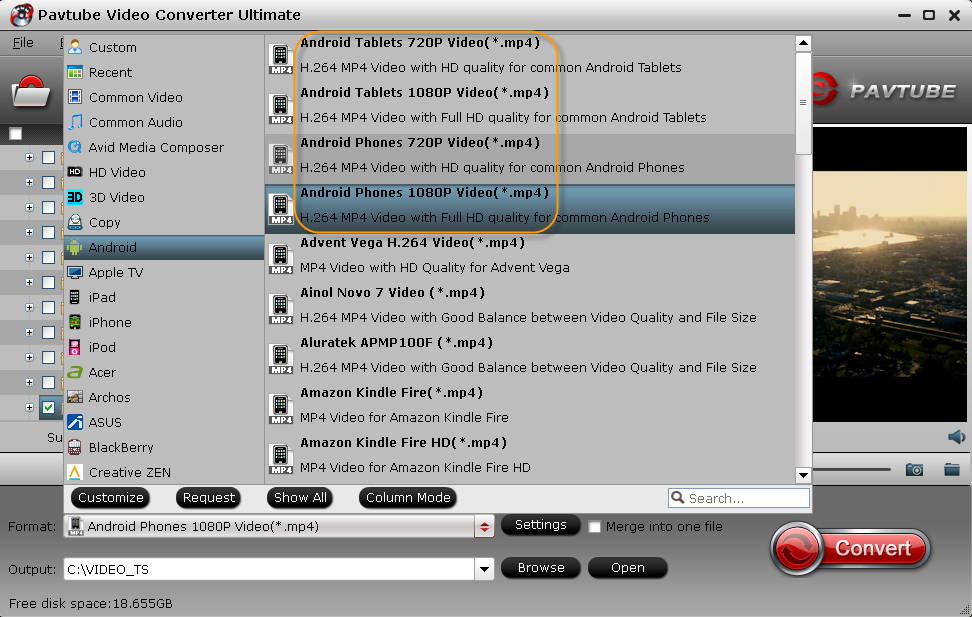
Click the drop-down arrow the "Format". There are several built-in profiles for popular devices. You can choose the output format according to your Android phone. Here we take MP4 as an example. You just need to choose the "Android > Android Phones (Tablets) 720p (1080p) (*.mp4)" option. 


Maybe you want to get HD MP4, you should move your mouse and choose the “HD Video” to select “H.264 HD Video(*.mp4)”, which will give you the HD MP4 video for you to watch on you Android Phone or tablet. 

After selecting the target profile, you can also set some properties for special needs. Click the "Settings" button to do some further video and audio settings. You can choose the resolution according your devices. 


Step 3. Convert video to Android format 

If you have done all these settings, just click "Convert" button to start converting your video to the Android format you select. And the converting progress will be finished within minutes. 

Step 4. Import the output video to Android phone 

Now, connect your Android mobile phone to computer and transfer the output videos to Android phone or tablet . Then you can enjoy the HD WMV on your Android Phone or your Android Tablet. 

Tuesday, July 15, 2014

Play Blu-ray ISO with Galaxy Tab S 10.5 and 8.4

Get a new Samsung Galaxy Tab S and want to play Blu-ray ISO on Galaxy Tab S, in this article, you will get the best Blu-ray ISO ripper for Galaxy Tab S, which will help you to convert and play Blu-ray ISO on Galaxy Tab S freely. 

Galaxy Tab S is one of the latest Android tablets that released from Samsung with a WQXGA (2,560 by 1,600) AMOLED display, packed into an 8.4-inch or 10.5-inch slate, which give us best visual effect with this great screen. 

Maybe you get some Blu-ray ISO files from your own Blu-ray or your friends and want to play them on your Android Tablet like Galaxy Tab S 10.5 or 8.4, you need to convert your Blu-ray ISO to your Galaxy Tab S for watching on the go, so a professional Blu-ray ISO ripper is required, here suggests you Pavtube BDMagic, which will not let you down! It can convert you Blu-ray ISO to your Galaxy Tab S 10.5 or 8.4 supported formats like MP4, AVI, MKV with best quality at 6X speed. 

How to put Blu-ray ISO to Galaxy Tab S 10.5 or 8.4? 

Step 1. Download Pavtube BDMagic and install it on your computer. 

Tip: Pavtube offers free trial. And if you transfer your Blu-ray ISO to your Galaxy Tab S 10.5 or 8.4 on Mac, you need download and install Pavtube BDMagic for Mac. 

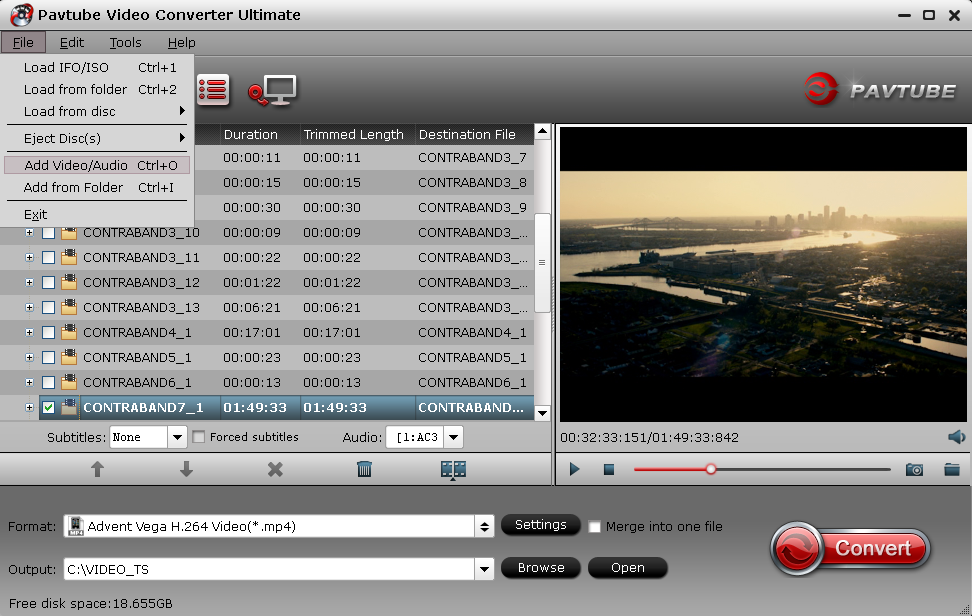
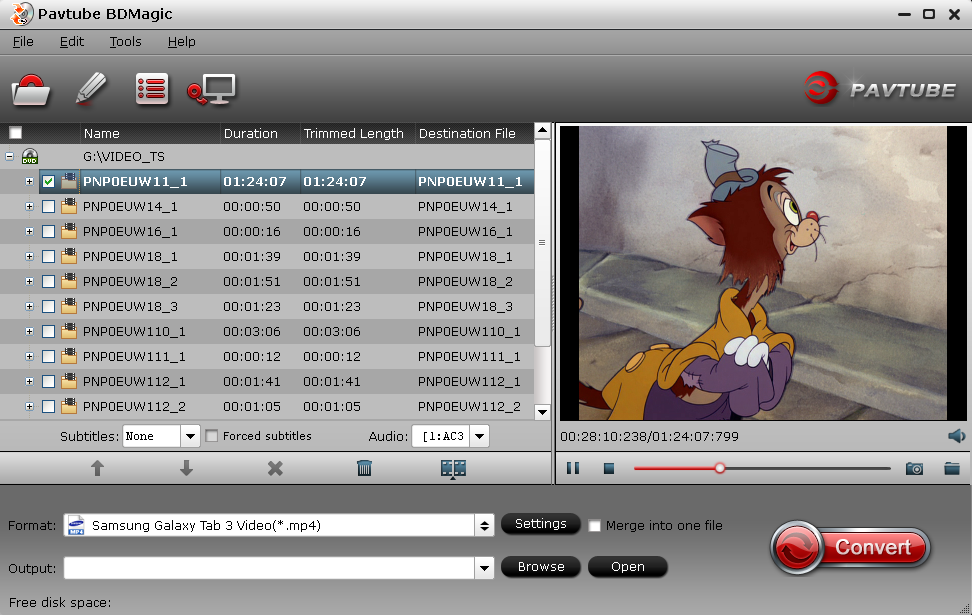
Step 2. Run the Blu-ray ripper for Tab S, and import your Blu-ray source iso image file by click "File" to choose "Load IFO/ISO". 


Tip: Of course, you can also click on "File" icon to import Blu-ray/DVD disc or Blu-ray/DVD folder. 

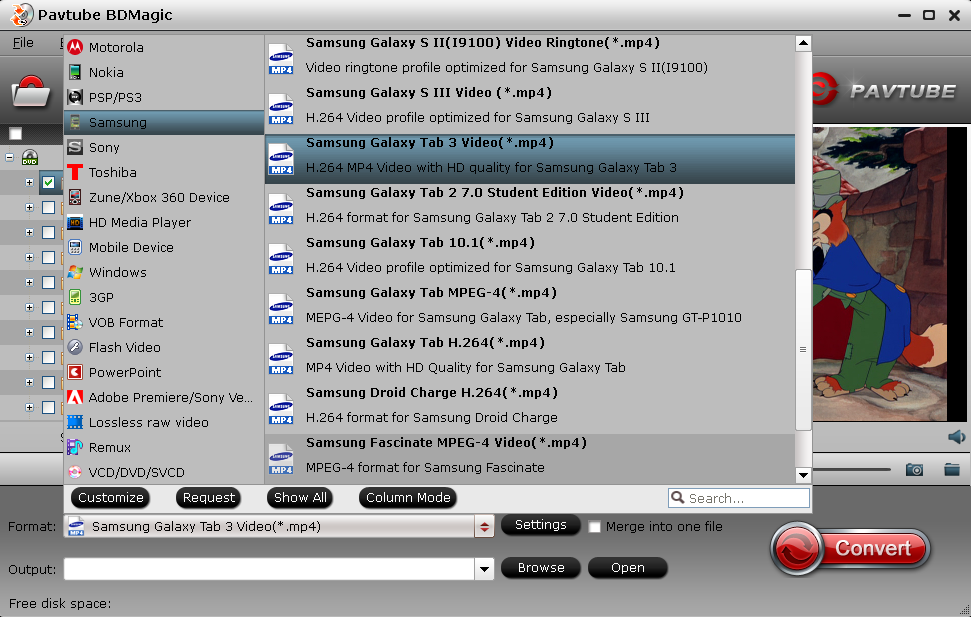
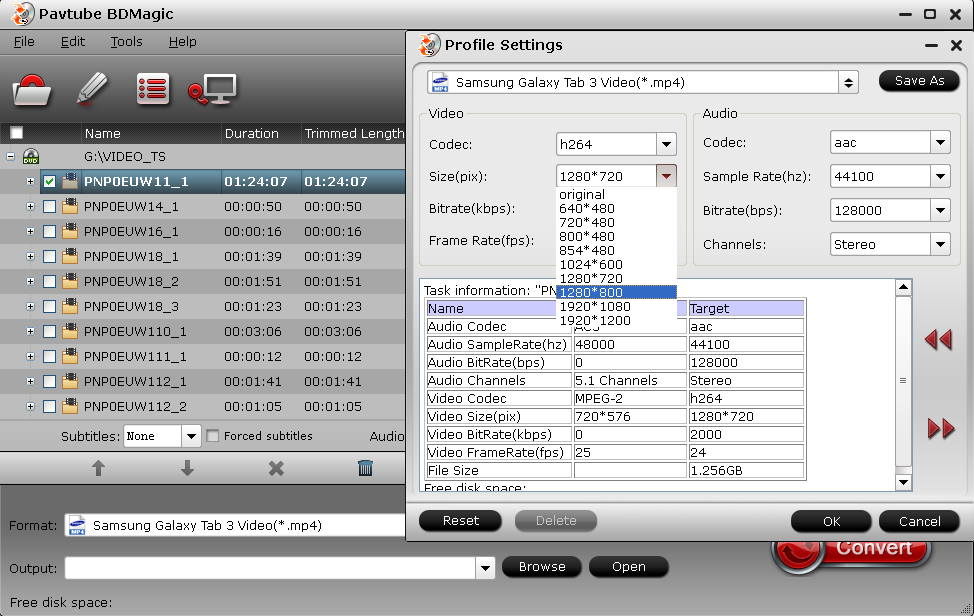
Step 3. Select output format for playback on Galaxy Tab S 10.5 or 8.4. Click the "Format" drop down list and choose "Samsung > Samsung Galaxy Tab 3 Video (*.mp4)" as the output video format for Samsung Galaxy Tab S. At the same time, you can click on "Settings" option to modify video size, bitrate, etc 


Tip 1: For Galaxy Tab S 10.5 or 8.4, you should choose "Size" to 1280 by 800. 


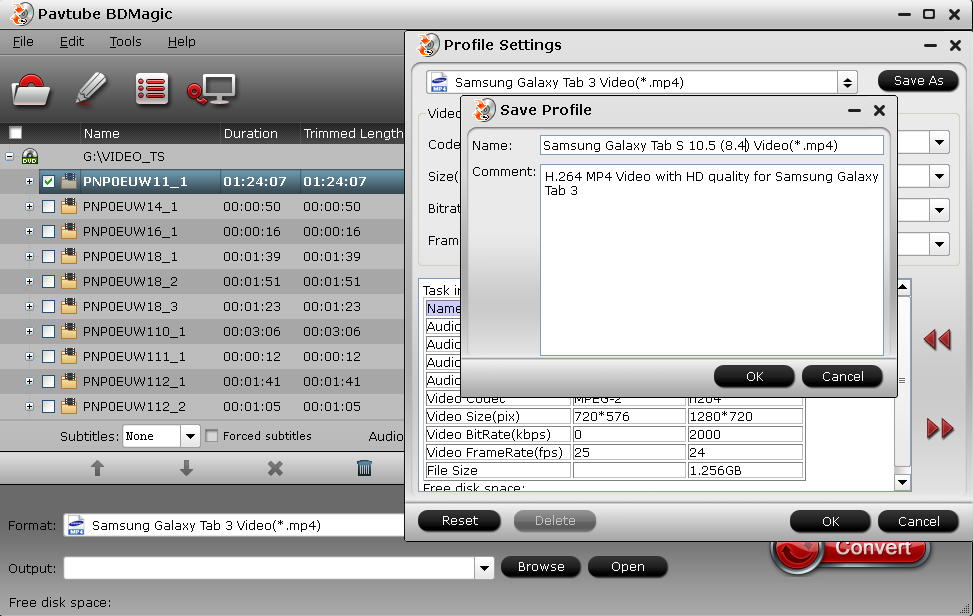
Tip 2. If you want to convert more movies to your Galaxy Tab S 10.5 or 8.4 on format H.264 mp4, you can click the "Save as" to change the title as Samsung Galaxy Tab S 10.5 or 8.4, next you can find this in "Custom" from "format". 


Step 4. Click on "Convert" button to start converting Blu-ray ISO to MP4 for your Galaxy Tab S 10.5 or 8.4. 

Once the conversion finished, you may click "Open" button to get the converted video file and transfer it to your Galaxy Tab S 10.5 or 8.4. It's simple for us to play Blu-ray ISO movies on Galaxy Tab S. Enjoy! 

Tip: Maybe you also want to play this Blu-ray ISO on your Media Players at home theater, with Pavtube BDMagic, you also achieve it, here is guide for you, only need to choose the different format for your Media Players. 

Monday, July 14, 2014

Create/Convert/Play Blu-ray iSO with HD Media Players

This article will tell how to create Blu-ray ISO files from your Blu-ray, and help you convert your Blu-ray ISO to HD Media Players playable formats for watching. 

Collect a lot of Blu-ray Discs and cannot play them anywhere and anytime, it is unfortunately that some of them may be ruined by children at home, in order to prevent the above occurrence, the best way is to backup your Blu-ray to ISO files and play them on your HD Media player even your other devices like your phone, your tablet and so on. Now let's learn how to achieve this process. 

Part I. How to get Blu-ray ISO files from Blu-ray? 

Software preparation: Pavtube BDMagic (offer free trial), Imgburn (this is freeware) 

Guide to follow: How to create free Blu-ray ISO image file from commercial blu-ray discs? 

Part II. How to convert Blu-ray ISO files to 1080p MKV, AVI, MP4, etc?


Software Recommend: Pavtube BDMagic 

(If you want convert your Blu-ray iSO to MKV with multiple audio tracks and subtitles streams included, you can try Pavtube ByteCopy software.) 

Step 1. Install and launch Pavtube BDMagic and load Blu-ray ISO files to it. 

Step 2. Select MKV/AVI/MP4…as output format 

Once your ISO file is loaded, you can click on the dropdown list of "Format" to select your desired output format. You are free to convert blu-ray ISO to MKV/AVI/MP4, or many other file types as you like. 

Step 3. Set advanced settings 

This best blu-ray ripper allows users clicking "Settings" button to adjust audio and video parameters before ripping blu-ray ISO to MKV/AVI/MP4, etc. The adjustable settings include codec name, aspect ratio, bit rate, frame rate, sample rate and audio channel. 

Step 4. Convert bluray ISO to MKV/AVI/MP4 

When the above mentioned steps are finished, you can click "Convert" button to start ripping bluray ISO to MKV/AVI/MP4, and more. The ISO ripper is capable of finishing ISO conversion at super high speed without the problem of letting audio and video go in separate ways. Once the ripping task is completed, just click "Open" button to get the final output files. Hope this guide will be of some help for you. 

Part III. How to watch Blu-ray ISO files on computer & HD Media Players? 

Software Download: Virtual BD Drive (this is a free tool), Blu-ray ISO player (this is trial of shareware) 

Guide to follow: How to play Blu-ray ISO image file on HTPC? 

For playing Blu-ray ISO with HD media player, you can choose WD TV Live Plus/HubPopcorn Hour A-410.

Sunday, July 13, 2014

Compare and find an international mainstream streaming media player for yourself

Faced with a wide variety of media streaming boxes, it is very different for you to judge which one is the best for you! Here we compare some accepted streaming media players for you to save your time to find their pros and cons and choose the best one for yourself. (In alphabetical order) 

1. Apple TV/ Apple TV 3 – Best solution for Apple fans 


The black Apple TV and Apple TV 3 are simple devices that stream content -- iTunes music, video, and photos -- from a Mac or PC, an iPhone, iPod touch or iPad (running iOS 4.2 or later) to an HDMI-equipped HDTV and allows one to pay for movies and TV shows from Apple. Both have built-in support for Netflix, YouTube, Flickr and other streaming services as well. 

Pros: 
  • Tiny, sleek case design. 
  • Easy to connect to an HDMI-equipped HDTV and setup for streaming. 
  • Easy to use interface (although text entry can be quite awkward without an iPod touch, iPhone or iPad). 
  • Easy to stream iTunes content from a Mac or Windows PC (and iPod touch, iPhone or iPad) as
  • well as support for Netflix, YouTube, Flickr and other streaming services as well. 
  • HDMI, optical digital audio, 10/100Base-T Ethernet and 802.11n support standard. 
  • Support for "true" 5.1 channel surround sound and 720p or 1080p video (2nd Gen only supports 720p, 3rd Gen supports 1080p). 
  • Inexpensive (US$99).

Cons: 
  • Limited functionality -- does not play CDs or DVDs or have any ability to record programming. 
  • No cables provided as shipped. Compatible cables have to be purchased separately. 
  • Does not support older HDTVs that lack HDMI support. 
  • No official internal storage or the ability to store content. 
  • Hardware cannot be upgraded -- processor, RAM or storage. 
  • Limited support for audio and video formats. Discontinued 2nd Gen model does not support for 1080p streaming (3rd Gen does). 
  • Small selection of rental content on iTunes, no ability to purchase content directly.

2. Google Chromecast 

  
Google's Chromecast beams videos from your mobile device or computer directly to your television. The Chromecast is about the size of a USB flash drive and attaches to a spare HDMI port on your TV, it supports Android and iOS on the mobile side and Windows 7 / Mac OS 10.7 and higher on the computer side. 

Pros: 
  • Inexpensive. 
  • Supported apps work well. 
  • Chrome tab casting is very useful. 
  • Easy setup. 
  • Compact design.

Cons: 
  • App support limited to Netflix, YouTube, and Google Play. 
  • Tab casting offers pixelated video for now. 
  • No central playback controls.

3. Microsoft Xbox 360 


When Microsoft shed light on the next-generation Xbox One at the E3 gaming trade show earlier this year it simultaneously announced that it was revamping the current-generation Xbox 360 too. Despite 2013 being the launch platform for next-gen, current-gen is set to have a bumper year with some huge titles on the horizon. It makes sense that Microsoft - like Sony - is still plugging its existing gear in a fresher way. But is the Xbox 360 in 2013 any different than before; is it a console solely for the last-minute deal-hunters or a console worthy of upgrade? 
Pros: 
  • Xbox LIVE is an amazing service. Undoubtedly the best way to play games online. 
  • Multiplatform games aften run better on 360 
  • Kinect (If you see that as a "pro" or not) 
  • Superior controller, in most people's opinions

Cons: 
  • Considerably fewer exclusives 
  • Very shooter-centric console. There's a noticeable lack in variety of the exclusives 
  • $60 yearly charge for Xbox LIVE 
  • Can't play blu-rays

 4. Roku 3 

  
The Roku 3 has solidified the company's position as one of the most popular set top boxes. The Roku 3 features a faster processor than its predecessor, dual-band Wi-Fi support, as well as a revamped user interface that should make discovering content from its 750 partner channels a lot easier. As far a ports are concerned you get Ethernet, HDMI with up to 1080p support, a microSD slot and USB with support for H.264 MKV video files. 

Pros: 
  • New remote with a built-in headphone jack. 
  • Great new interface. 
  • Faster processor. 
  • Very responsive. 
  • Over 750 channels are supported, including Netflix, Amazon Instant, HBO Go, Hulu Plus, Pandora, MLB.TV, Amazon Cloud Player, and Vudu.
Cons: 
  • No YouTube Google Play support. 
  • Gaming selection limited. 
  • Isn't great streaming your personal digital media collection.

5. Sony PS4 - Best solution for gamers 


PS4 is a great game console for early adopters and it serves up dazzling graphics, runs on a simplified and logical interface, and boasts a fantastic controller. It's $100 cheaper than rival Xbox One and has the upper hand on indie and digital-only games. It also doubles as a great Blu-ray player and has plenty of streaming entertainment apps. 

Pros: 
  • The launch games aren’t as mediocre as you’ve heard. 
  • It’s $100 cheaper than Microsoft’s $500 Xbox One. 
  • It’s the most refined games console Sony’s ever built. 
  • It ships with the most refined gamepad Sony’s ever built.
Cons: 
  • You’re looking for the Super Mario 64 of next-gen. 
  • You’re looking for the Wii Remote of next-gen. 
  • You’re thrilled with your PlayStation 3 or Xbox 360. 
  • Your social network’s on another platform. 
  • It doesn’t partner with your TV or offer Kinect-caliber voice recognition.

6. WD TV Live - Best solution for hard-core tech geeks 


Network media players keep getting smaller. The WD TV Live Plus HD Media player by Western Digital is smaller than a paperback book. Still, it is powerful enough to find the media on your network and stream it to your TV in 1080p full high definition. This network media player has a fast processor that loads media quickly and is compatible with just about any photo, movie or music file format except those with copyright protection. The WD TV Live Plus is "plus" because it adds Netflix and Mediafly, and Hulu Plus* to the WDTV Live model. 

Pros: 
  • Plays MKV files no problem (for me) when they contain x264 and AC3. 
  • Plays most MP4 files fine when using x264 and AC3. 
  • Plays AVI files fine, assuming they don't have weird or ancient codecs. 
  • YouTube feature works well enough 
  • Pandora is nice. 
  • Networks easily enough, quirks aside.

Cons: 
  • Some MP4 files exhibit sync loss, making them unwatchable. 
  • Most containers don't pass-thru AC3 / surround channels intact (only MKV and M2TS do, along with ISO/VOB?) 
  • Support for HD digicam footage is mixed. To be fair, some companies use weird codecs. 
  • YouTube no longer plays HD and a lot of SD content is flagged "No Syndication" and won't play either. 
  • Network issues, if you get them, will drive you insane. 
  • Infrequent and modest firmware releases. 
  • Not the best choise if you rip DVDs to ISO or VOB (no DVD menu support) 
  • No BluRay menu support (and there never will be).