MKV is a multimedia container format that can include video, audio, subtitles and other metadata. And most often, MKV videos contain hardcoded subtitles, which you cannot delete or remove them, but luckily you can edit them by using MKV subtitle extractor.
Maybe you have tried MakeMKV, which is a good software, it can help you to convert Blu-ray to MKV with original video quality keeping with original Blu-ray subtitles - PGS encoded .sup file, but when you play the MKV video with WD TV Live media player (or whatever HD media player), just find there is no subtitles displaying on HDTV, that is because there are rare HD media box that supports PGS encoded .sup file. This is place where MakeMKV need to improve.
To have the subtitles displayed correctly or extract PGS subtitles from MKV, you'll have to convert the PGS subtitles to SRT or other external subtitles format or rip the Blu-ray again with displayable subtitles. Here's a decent free tool for extracting/converting PGS subtitles from MKV: SubtitleEdit
How to convert PGS to SRT from MKV video:
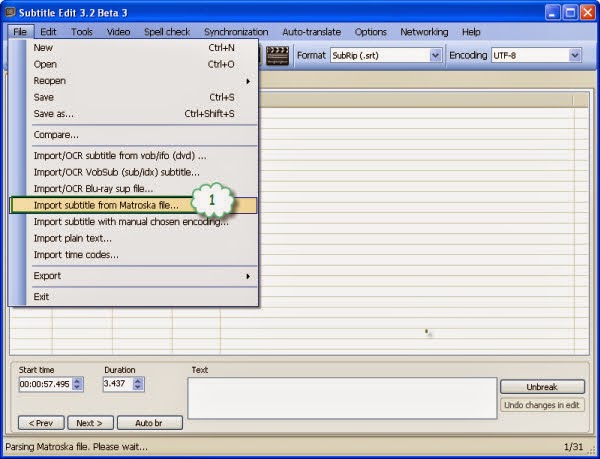
1. Open up Subtitle Edit, follow "File>>Import subtitle from Matroska file…" and browse to the MKV source video.
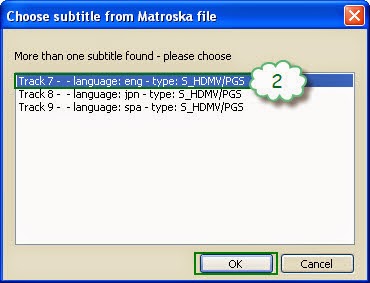
2. Select desired pgs subtitles from MKV.
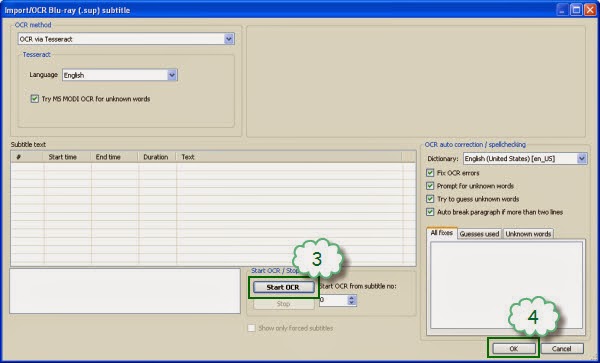
3. Choose an OCR method to recognize and convert the PGS image subtitles. Click "OK" after OCR proof completed.
4. Select "SubRip(*.srt)" as output format and click "Unbreak".
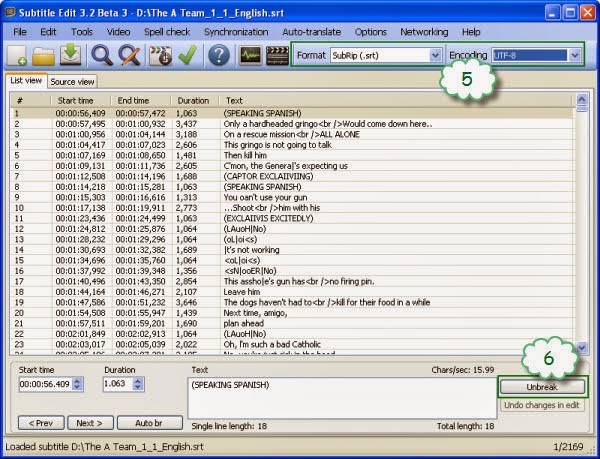
Now you have successfully converted PGS to SRT. Name it as the MKV file and put the SRT subtitles into the folder that contained MKV video. The next time you play the MKV there will be subtitles on HDTV.
Optional way converting SRT subtitles for MKV- use Pavtube Bytecopy to convert .srt subtitles directly from Blu-ray Disc, in that way you get multiple subtitles at one conversion. And SubtitleEdit Free Version can only work in Windows 8, 7, Vista, XP, if you are Mac user, you cannot have it free, you can try Pavtube ByteCopy for Mac to extract PGS subtitles from MKV and Convert PGS subtitles to SRT from MKV.
Learn More about Pavtube ByteCopy
