Do you experience the following situation?: When you open up MKVextract GUI and load up an MKV that was made with MakeMKV, you select the PGS subtitle, but MKVextract always tells me "MKExtract cannot extract this kind of file". Here offers you two ways to solve this problem.
MKV is a multimedia container format that can include video, audio, subtitles and other metadata. And most often, MKV videos contain hardcoded subtitles, which you cannot delete or remove them, but luckily you can edit them by using MKV subtitle extractor.
Maybe you have tried MakeMKV, which is a good software, it can help you to convert Blu-ray to MKV with original video quality keeping with original Blu-ray subtitles - PGS encoded .sup file, but when you play the MKV video with WD TV Live media player (or whatever HD media player), just find there is no subtitles displaying on HDTV, that is because there are rare HD media box that supports PGS encoded .sup file. This is place where MakeMKV need to improve.
To have the subtitles displayed correctly or extract PGS subtitles from MKV, you'll have to convert the PGS subtitles to SRT or other external subtitles format or rip the Blu-ray again with displayable subtitles. Here's a decent free tool for extracting/converting PGS subtitles from MKV: SubtitleEdit
How to convert PGS to SRT from MKV video:
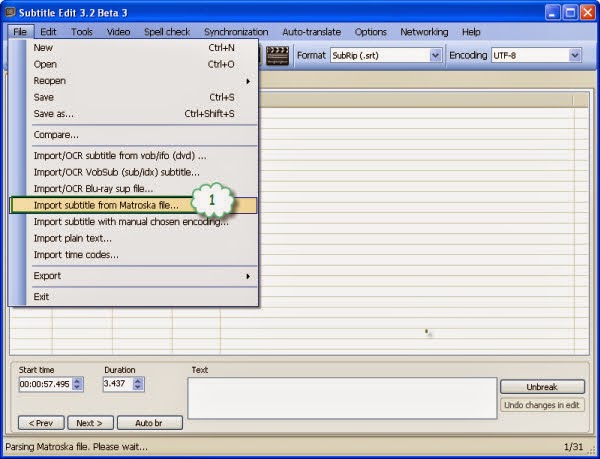
1. Open up Subtitle Edit, follow "File>>Import subtitle from Matroska file…" and browse to the MKV source video.
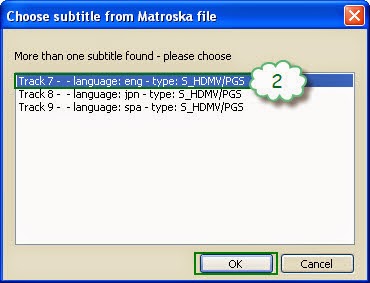
 2. Select desired pgs subtitles from MKV.
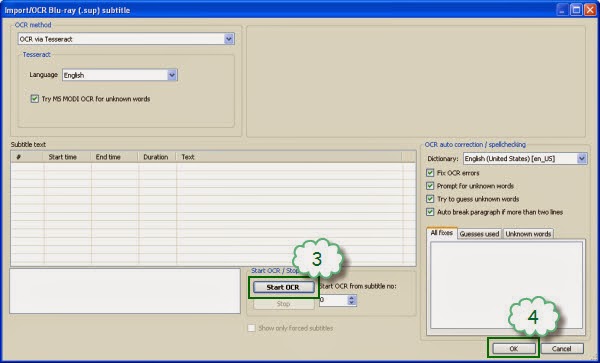
 3. Choose an OCR method to recognize and convert the PGS image subtitles. Click "OK" after OCR proof completed.
 4. Select "SubRip(*.srt)" as output format and click "Unbreak".
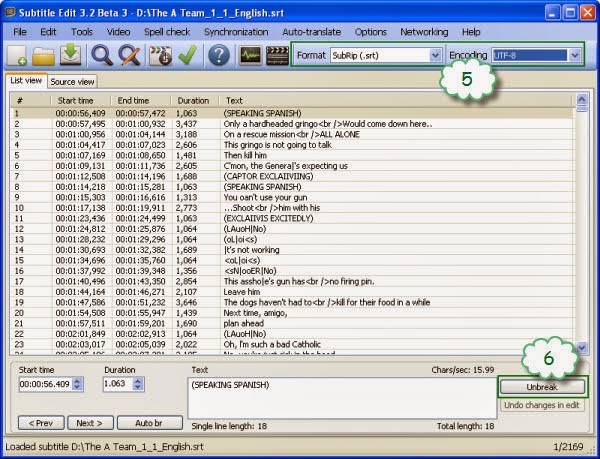 Now you have successfully converted PGS to SRT. Name it as the MKV file and put the SRT subtitles into the folder that contained MKV video. The next time you play the MKV there will be subtitles on HDTV.
Optional way converting SRT subtitles for MKV- use Pavtube Bytecopy to convert .srt subtitles directly from Blu-ray Disc, in that way you get multiple subtitles at one conversion. And SubtitleEdit Free Version can only work in Windows 8, 7, Vista, XP, if you are Mac user, you cannot have it free, you can try Pavtube ByteCopy for Mac to extract PGS subtitles from MKV and Convert PGS subtitles to SRT from MKV.
Learn More about Pavtube ByteCopy
Now you have successfully converted PGS to SRT. Name it as the MKV file and put the SRT subtitles into the folder that contained MKV video. The next time you play the MKV there will be subtitles on HDTV.
Optional way converting SRT subtitles for MKV- use Pavtube Bytecopy to convert .srt subtitles directly from Blu-ray Disc, in that way you get multiple subtitles at one conversion. And SubtitleEdit Free Version can only work in Windows 8, 7, Vista, XP, if you are Mac user, you cannot have it free, you can try Pavtube ByteCopy for Mac to extract PGS subtitles from MKV and Convert PGS subtitles to SRT from MKV.
Learn More about Pavtube ByteCopy
Want to extract .srt subtitles from Blu-ray Disc, BDMV and BD ISO, try Pavtube ByteCopy, which is the best tool to handle with subtitles like extracting .srt subtitles from Blu-ray Disc, force subtitles and external subtitles with keeping multiple audio tracks and subtitles when ripping Blu-ray to MKV container.
We may need to extract .srt or .sup subtitles from Blu-ray Disc or BDMV or BD ISO, which might be useful if you have converted your Blu-ray to mkv, mp4, etc and forgot to include subtitles. And there are many guides for Blu-ray subtitles processing to help us extract PGS subtitles from a Blu-ray BDMV structure, and even rip subtitles from a Blu-ray movie, but none of them tells us how to extract .srt subtitles from Blu-ray Disc/BDMV/BD ISO.
Since Blu-ray movies use SupPicture(.SUP) files for subtitles, so if you want to extract .srt subtitles from Blu-ray Disc/BDMV/BD ISO, you need blu-ray ripper to import the .sup subtitles and convert .sup to .srt subtitles. But even the best ranking Blu-ray ripper like MakeMKV, which can only rip Blu-ray to MKV without changing the .SUP subtitles at all. May be you have tried Pavtube BDMagic which is more comprehensive, but it can only stream one subtitles to movies like converting BD to AVI/MP4/MKV....To solve this problem, Pavtube released Pavtube ByteCopy, which is one of Pavtube unique software, no software can replace it on the market to extract .srt subtitles from Blu-ray Disc/BDMV/BD ISO. It is more prominent that it can let users keep multiple audio tracks and subtitles when ripping Blu-ray to MKV container. And even, you can force subtitles and external subtitles if you want. Although it is not free software, but as long as $42, you can use it for lifetime as long as you like.
(Good news: This Sunday is Father's Day, Pavtube promotion, now buy, only need $33.6, which can be used as a gift for your father to let him watch his favorite movies smoothly without subtitles troubles.)
How to extract .srt subtitles from Blu-ray Disc/BDMV/BD ISO
Note: A Blu-ray Disc Drive is required for reading Blu-ray Disc. The computer networked to get the app work- accessing BD+ key to crack the BD copy-protections.
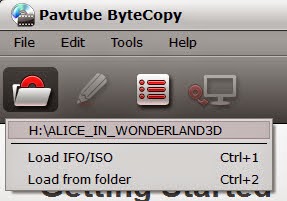
1. Load Blu-ray Disc from BD-ROM, or BD ISO, BDMV from hard drive.
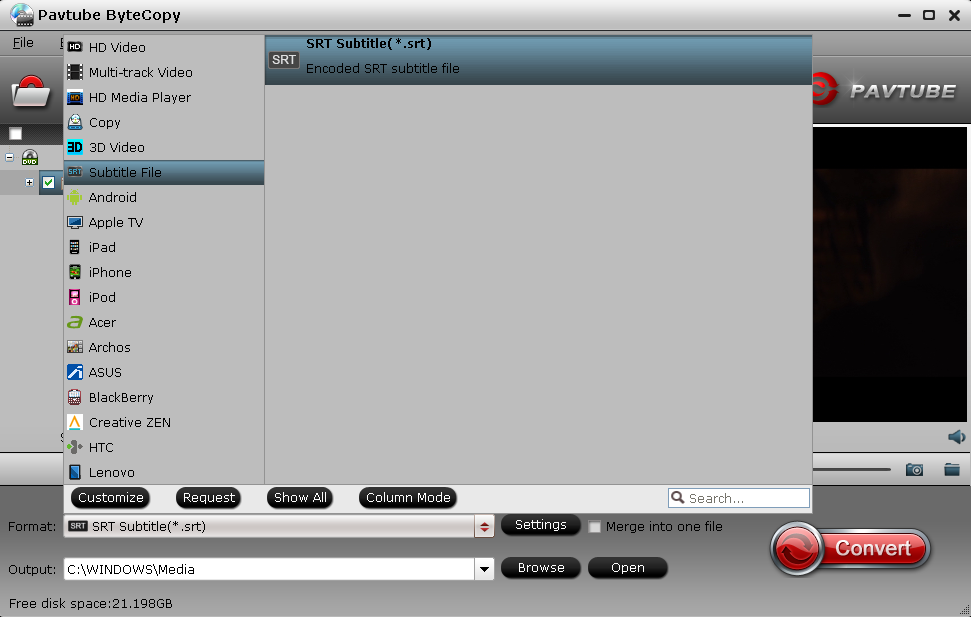
 2. Find the "Format" menu, and select "Subtitle File" from its drop-down list. There is an options of the box-"SRT Subtitle(*.srt)".
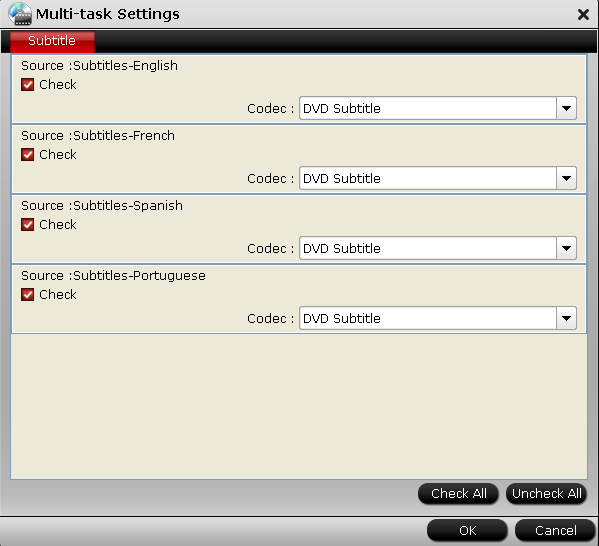
 3. Select subtitles by language. Check any language you'd like to keep. You can either keep native-language subtitles only or multiple subtitles in different languages.
 4. Now hit the big red "Convert" and ByteCopy will extract Blu-ray .sup subtitles and convert them to .srt format. It could take long time to convert .sup subtitles to .srt, as .sup is an image format.
Tip: ByteCopy uses OCR (Optical character recognition) to read the Blu-ray image subtitles. Additional font object libraries for Latin-based languages (English, French, Spanish, etc) and Asia languages (Chinese, Japanese, Korea) are included to ensure subtitles be recognized and converted correctly. But there could be a few spelling mistakes existing in .srt subtitles, though ByteCopy does better than many other subtitles converter apps per we tested.
4. Now hit the big red "Convert" and ByteCopy will extract Blu-ray .sup subtitles and convert them to .srt format. It could take long time to convert .sup subtitles to .srt, as .sup is an image format.
Tip: ByteCopy uses OCR (Optical character recognition) to read the Blu-ray image subtitles. Additional font object libraries for Latin-based languages (English, French, Spanish, etc) and Asia languages (Chinese, Japanese, Korea) are included to ensure subtitles be recognized and converted correctly. But there could be a few spelling mistakes existing in .srt subtitles, though ByteCopy does better than many other subtitles converter apps per we tested.