Showing posts with label Convert Blu-ray to lossless MKV. Show all posts

Wednesday, July 9, 2014

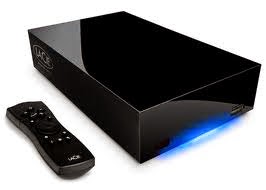
Enjoy 1080p Blu-ray on Lacie LaCinema Classic HD Media Player

The LaCinema Classic HD Media Player provides uncompromising quality, adding stunning 1080p playback through HDMI on your HDTV. No matter the video, music or photo format and resolution, the LaCinema Classic HD will play it seamlessly with the highest sound and image quality. It's compatible with all the most popular video formats on the market, from DivX, MKV, to AVC and H.264, and provides uncompromised Dolby Digital quality sound. So if you have this HD Media Player, you will convert your Blu-ray collections to LaCinema Classic HD Media Player playable formats like MKV with 1080p. 


Pavtube ByteCopy (Windows/Mac) 

Pavtube ByteCopy is designed for converting Blu-ray/DVD to lossless/encoded Multi-track MKV with multiple audio tracks and subtitles included and chapter markers. And the MKV video generated by Pavtube ByteCopy plays well on LaCinema Classic HD Media player. Now that Lacie has up to 2TB (2000GB) of storage, which holds tons of Blu-ray and DVD movies, you'll save time and avoid having to burn DVDs. (Maybe you also buy LaCie Thunderbolt 2, you also can store your blu-ray or DVD to it with ByteCopy.) With Pavtube ByteCopy, you can also convert your Blu-ray to Multi-track AVI and Multi-track MOV, both are supported by LaCinema Classic HD Media player. 

Guide: Convert Blu-ray Disc/DVD to MKV without quality loss 

Step1: Load Blu-ray movies. 

Launch the best Blu-ray to multi-track converter; import Blu-ray movies into the program. Loaded Blu-rays can be previewed in the right preview window. 

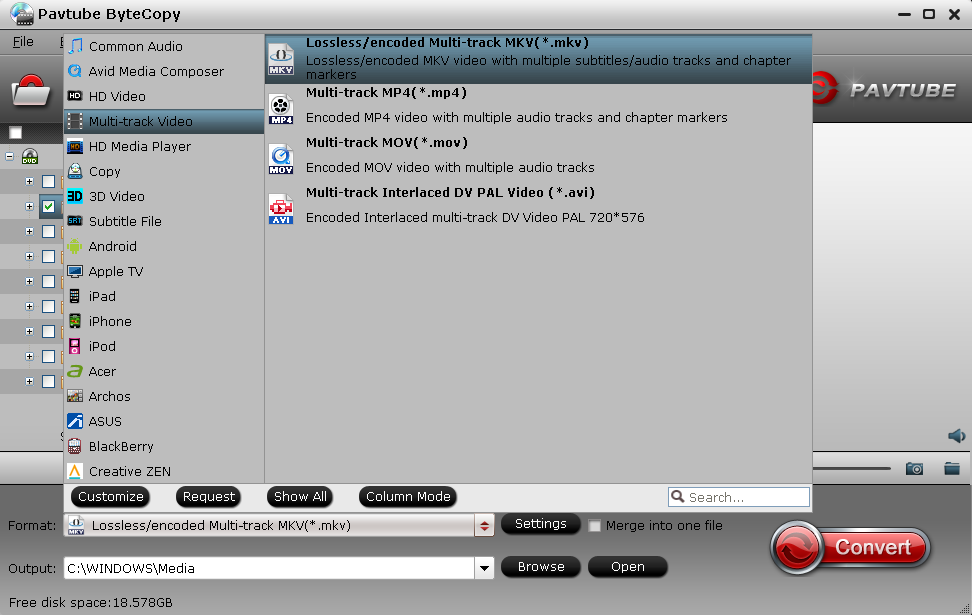
Step 2: Choose output format 

In the dropdown list of Format menu, you can choose "Lossless/encoded Multi-track MKV (* mkv)" under "Multi-track Video" catalogue, which will save multiple video, audio and subtitle tracks form original Blu-ray in output MKV and you won't suffer any quality loss. 


Step 3. Select audio codec for output. 

Click "Settings" button on the main interface; you are brought to Multi-task Settings. You are allowed to customize profile presets as you like, you could remove unwanted audio track in Audio tab under Settings menu, and uncheck subtitles you do not need in Subtitles tab. 
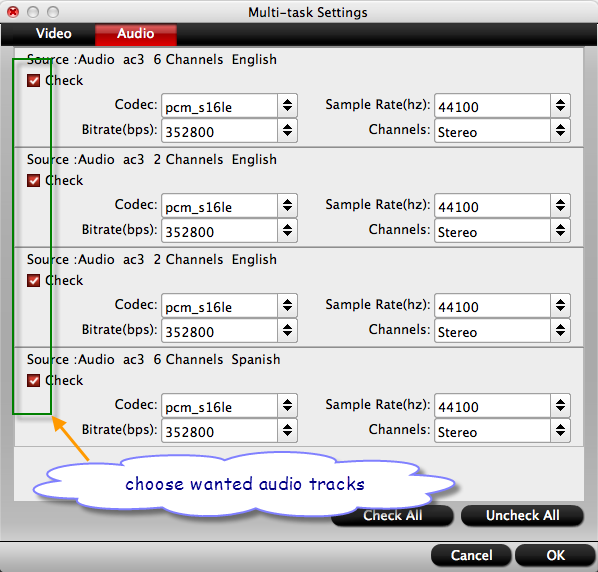


Tip: If you change audio parameters under "Encode" option, you will get a encoded multi-track MKV file, not lossless multi-track MKV. Recoding Blu-ray to MKV will take a little more time for conversion than lossless output. 

Step 4. Start to convert Blu-ray to lossless MKV. 

When everything is ready, you can click "Convert" button to start converting Blu-ray to MKV with multi-track. Once finished, go to "Open" the generated MKV files. 

Now it is time to enjoy your favorite Blu-ray movies with preserving all the multiple audio and subtitle tracks as well as 1080p on your Lacie LaCinema Classic HD Media Player. 

Play 1080p MKV on HDTV with Lacie Classic HD 
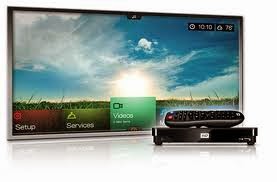


To play Blu-ray on HDTV at 1080p, you can also use Pavtube ByteCopy to convert Blu-ray to 1080p MKV and play the HD video with LaCinema PlayHD. If the player fails to play HD audio like DTS-HD or TrueHD, you can mix-down the HD audio to Dolby Digital or DTS 5.1 with your wanted language using Pavtube ByteCopy. 

Step 1. Firstly, connect the 2TB hard drive of LaCinema Classic HD to your computer (either Windows or Mac) to easily store your movies. 

Step 2. Then, connect LaCinema Classic HD to your TV for instant playback. No configuration is required. 

After two steps, you can enjoy your 1080p MKV and many more file types on any TV. 

Know more about Lacie LaCinema Classic HD Media Player 

Audio Formats : MP3, WMA, WAV, AAC, OGG, FLAC, AC3 
Video Formats:ISO, VC-1, VOB, ASF, TS, TP, DVD Video, DVR-MS, QuickTime MOV, WMV, AVI, Matroska (MKV), DAT, MPEG, MPEG-1, MPEG-2, MPEG-4, DivX,XviD 
Image Formats : JPEG, PNG, GIF, BMP, TIFF 

Wednesday, June 11, 2014

How to rip a Blu-ray to WD TV Live Media Player and get audio/subtitles played properly

Do you have build your home entertainment center with WD TV Media Player? If the answer is Yes, maybe you'll want to backup the 1080p movies and play those Blu-ray movies with WD TV HD media players. Here suggests you a tool to make you enjoy Bly-ray Movies on WD TV Live Media Player with audio/subtitles you want.


Tool Download
Pavtube ByteCopy ($42) –Download a trial from HERE (Windows 2003/XP/Vista/Windows 7/Windows 8/Windows 8.1 ). Alternative version for Mac-Pavtube ByteCopy for Mac (Mac OS X 10.9 Mavericks, 10.8 Mountain Lion, 10.7 Lion, Snow Leopard10.6, Leopard 10.5  and later)

Note: A Blu-ray Disc Drive is required for Blu-ray ripping. The computer must be networked to access BD+ keys for cracking the BD copy-protections.

Guide- Rip a Blu-ray to WD TV HD media players playable file type with ByteCopy

You can choose the Blu-ray Disc, BDMV folder, BD ISO or DVD, VIDEO_TS, DVD ISO as source video. Click the "File" to load the source video you want to convert.

Tip: By default only Title One is retained. Title 1 (Main Title) contains full-length movie, extras are not included.


Then you need to choose the format and set for the format you choose. Which is the best format and settings for WD TV Live Media Player, please read the following detailed analysis.


Optional video codec in a commercial Blu-ray Disc: MPEG-2, MPEG-4 AVC/H.264 and SMPTE VC-1 stream sealed in .m2ts container.

WD TV Live media players supported video codec in MKV container: MPEG-2, MPEG-4 AVC/H.264 and SMPTE VC-1 stream sealed in .m2ts container. The WD TV Live HD Media Player only supports certain types of codecs based on the extension of your file.

Which video to keep and which to convert: the WD TV Live HD media player support all the video codec that a Blu-ray movie can include. There's no need to convert Blu-ray video, unless you'd like to compress the movie to smaller file size (e.g. when ripping BD-50 movies).

Optional audio codec in a commercial Blu-ray Disc: LPCM as well as Dolby Digital, Dolby Digital Plus, Dolby Lossless, DTS digital surround and DTS-HD audio formats.

WD TV Live media players supported audio codec in MKV container: MPEG Aduio, PCM, Dolby Digital, DTS, AAC. An audio receiver is required for multi-channel surround sound digital output. If you connect WD TV Live Plus directly to TV you get stereo only.

Which audio to keep and which to convert: LPCM audio must be not converted, since the codec is not compatible with MKV container. When a MKV file contains LPCM audio, it is not playable. Dolby Digital and DTS audio can be kept (by checking "Check" box). Dolby Digital Plus, Dolby TrueHD, DTS-HD HR and DTS-HD MA audio should be converted to Dolby Digital, i.e. AC3 (by checking "Check" and "Encode" boxes) if you're using 5.1 audio system.

Subtitles in a commercial Blu-ray Disc: .sup subtitles with PGS codec.

WD TV Live Plus supported subtitles: SRT, SSA, ASS, and SAMI

Which subtitles to keep and which to convert: Although the WD TV Live Media Player plays Blu-ray subtitles from BD ISO/BDMV, it does not support PGS subtitles in MKV container. So here you need to convert sup subtitles to dvdsub format.

That's it.  After that , you can click the big "Convert". When this process ends, you have successfully ripped a Blu-ray to WD TV Live Media player playable format and have made video, audio and subtitles compatible with WD TV Live Media player! Enjoy your movies~


Learn more features about Pavtube ByteCopy.